 Design guide
Design guide
Design guide
You can authorize a third-party AI tool to read data in your own Ragic account using MCP (Model Context Protocol). Once connected, you can ask the AI to search for data, summarize content, cross-reference records, or answer questions about your data.
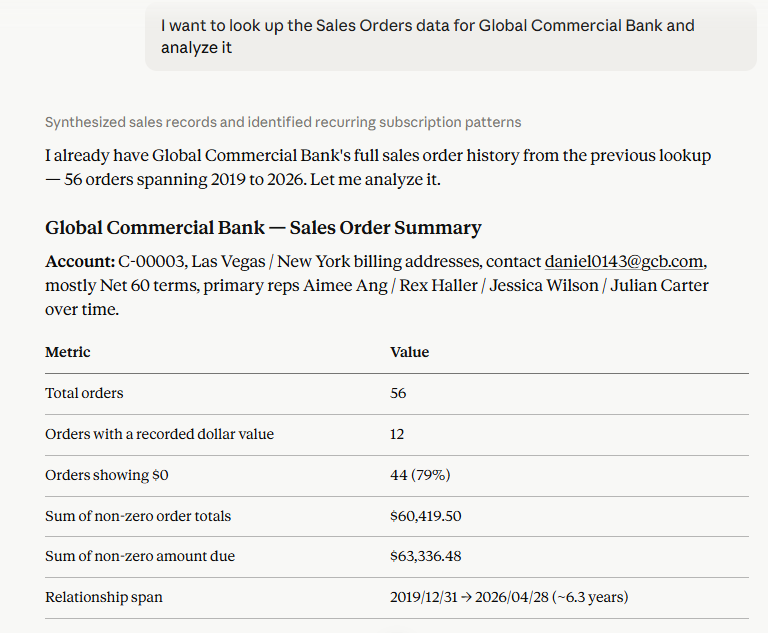
Once connected, AI can help you with the following. Just ask in your own words, for example "Search for 'Annual Contract.'" See Example Prompts for more.
| Function | Description |
|---|---|
| Look up database accounts | List the Ragic database accounts you can access |
| Look up sheets and fields | List the sheets in a database account, along with each sheet's field definitions |
| Full-text search | Search for a keyword across the whole database account to locate which sheet and record the data is in. This follows the same rules as Full-Text Search. |
| Browse Listing Page data | Browse records as they appear on the Listing Page (listing columns only), with optional filters by field, Created Date, Creator, or Record Manager |
| Read full records | Read the full content of records, including Subtables, record Comments, field Comments, and the record's e-mail history |
| Look up users | Look up the user options available for the "Creator" and "Record Manager" filters |
| Look up developer documentation | Read Ragic's developer documentation (HTTP API and JavaScript Workflow) to answer API integration and workflow scripting questions |
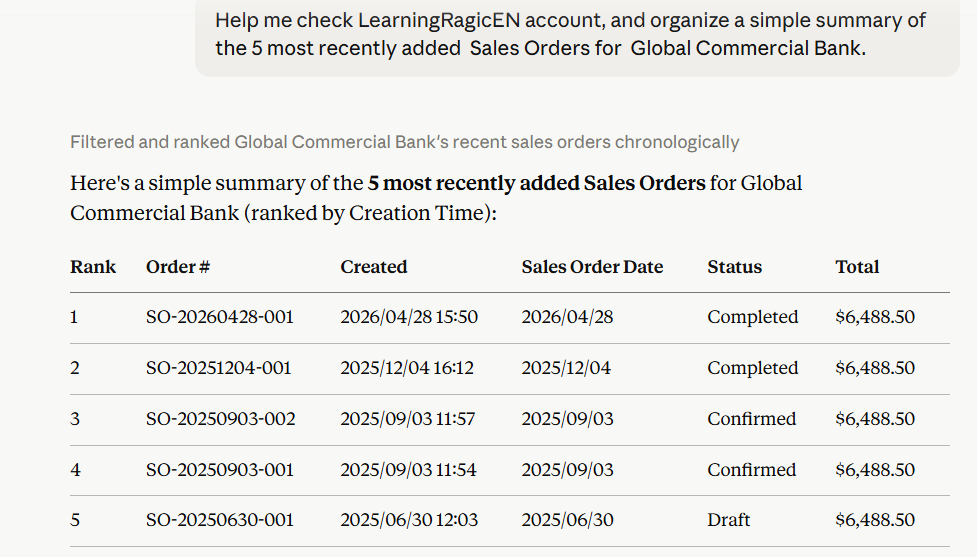
Note: Ragic MCP currently only supports reading data. The AI can query data you have access to, but can't create, edit, or delete it.
You can use Ragic MCP just like you'd ask any other question. Here are some common examples.
1. Check available database accounts
2. View sheets
3. Search for data
4. Read and organize records
5. Query by person or date
Note: If you only remember someone's name and aren't sure of their email, you can first ask the AI to find the matching person, then use that email to search further.
Ragic MCP reads data according to the access rights you already have in Ragic:
1. It only reads and returns the database accounts, sheets, and fields you have access to.
2. If you're an External User in a database account, MCP won't read any data from it.
3. Ragic's internal system configuration sheets aren't accessible via MCP.
Note: As long as you have access to the sheet or field, MCP can still read data that's been hidden or filtered out, including hidden sheets, fields with the Hidden attribute, fields and sections hidden by Conditional Formatting, and data excluded by Fixed Filter. To restrict this, adjust the MCP API permission in Feature Access Settings.
Ragic MCP has two ways to connect: one lets you install it directly, the other requires you to set up the connection URL yourself. If you need to set it up yourself, complete the following first:
1. Identify your database account: You'll need to know which Ragic database account you want to query. You can find this from the URL. For example, if your Ragic homepage URL is:
https://www.ragic.com/youraccountname
then "youraccountname" is your database account name. Once connected, you can simply tell the AI: "In the youraccountname account, help me find...". If you're not sure of your database account name, you can ask the AI to "list the Ragic database accounts I have access to".
2. Get the connection URL:
If you're using cloud service:
https://www.ragic.com/api/mcp
If you're using an On-premises Plan, please check with your administrator for the correct URL, which is usually:
https://your-server-address/api/mcp
1. Cloud Service
If you're using Ragic cloud service, Ragic MCP is already listed in Claude's Connectors Directory, so you can install it directly without entering a connection URL yourself.
Note: On a claude.ai Business Plan, an admin can add the connector directly, or a user can request it and have an admin approve it; either way, Ragic MCP isn't installable until an admin adds or approves it. On a Personal Plan, you can connect directly using the steps below.
Steps:
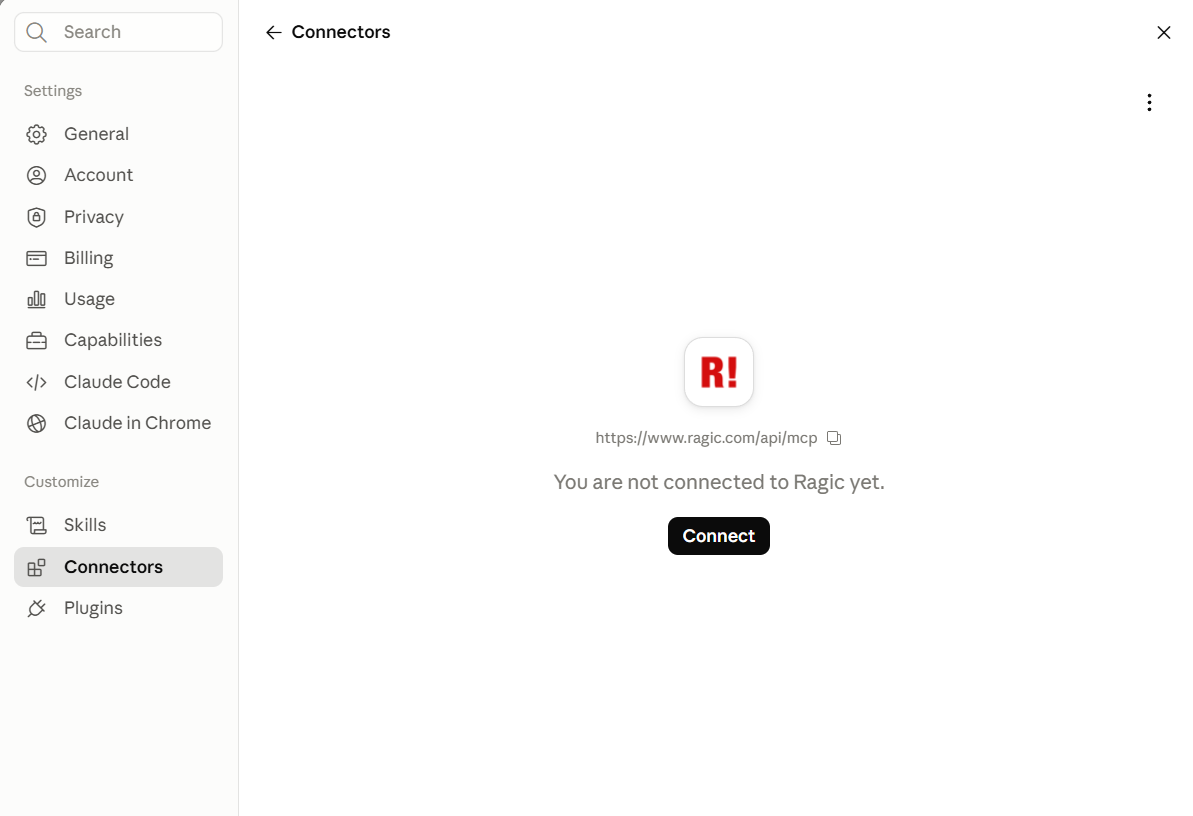
1. Go to the Ragic connector page, or navigate to Settings, enter the Connectors section under Customize, and search for "Ragic".

2. Click Connect to Claude to start the setup.

3. Follow the prompts to log in to Ragic and complete authorization. The connection is complete.

2. On-premises Plan
If you're using an On-premises Plan, Ragic won't appear in the Connectors Directory. Please add it instead using a custom connector.
Note: On a claude.ai Business Plan, a connector can only be added by an admin, who then grants access to individual users. On a Personal Plan, you can connect directly using the steps below.
Steps:
1. Open the "Customize" settings page in claude.ai.
2. Add a "custom connector" under Connectors.

3. Enter "Ragic" as the name.
4. Enter the connection URL provided by your administrator for your on-premises server (usually https://your-server-address/api/mcp).

5. Choose OAuth as the authentication method, or follow the default settings shown on screen.
6. Save, then follow the prompts to log in to Ragic and complete authorization. The connection is complete.
1. Cloud Service
If you're using Ragic cloud service, Ragic MCP is already listed in ChatGPT's plugin directory, so you can search for and install it directly without entering a connection URL yourself.
Note: On ChatGPT's Business Plan, an admin can add the plugin directly, or a user can request it and have an admin approve it; either way, Ragic MCP isn't searchable or installable until an admin adds or approves it. On a Personal Plan, you can connect directly using the steps below.
Steps:
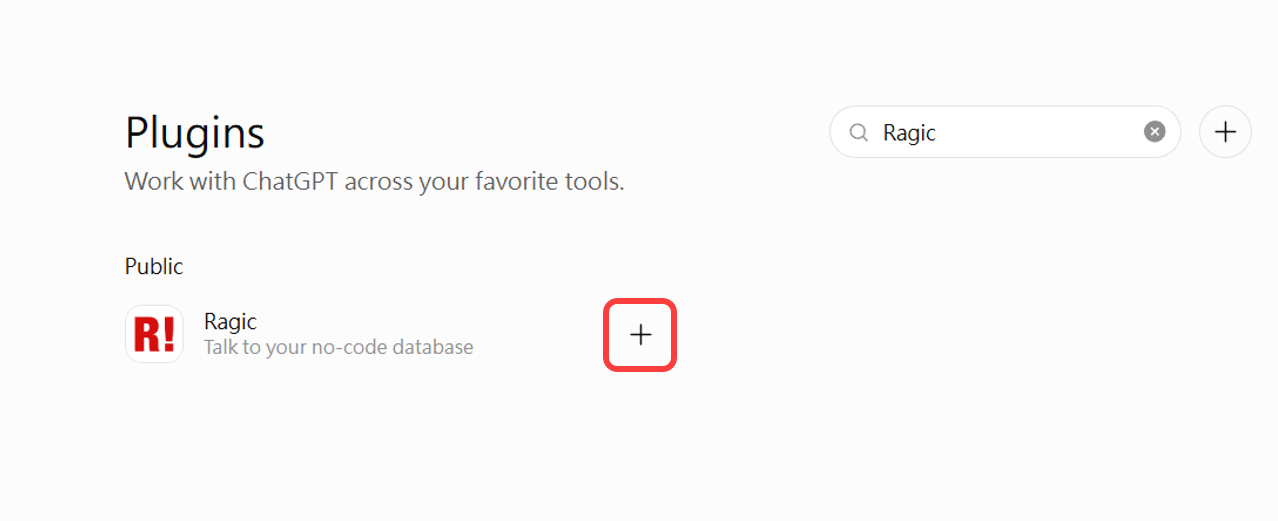
1. Go to the Ragic plugin page, or click Plugins in the left sidebar of ChatGPT and search for "Ragic".
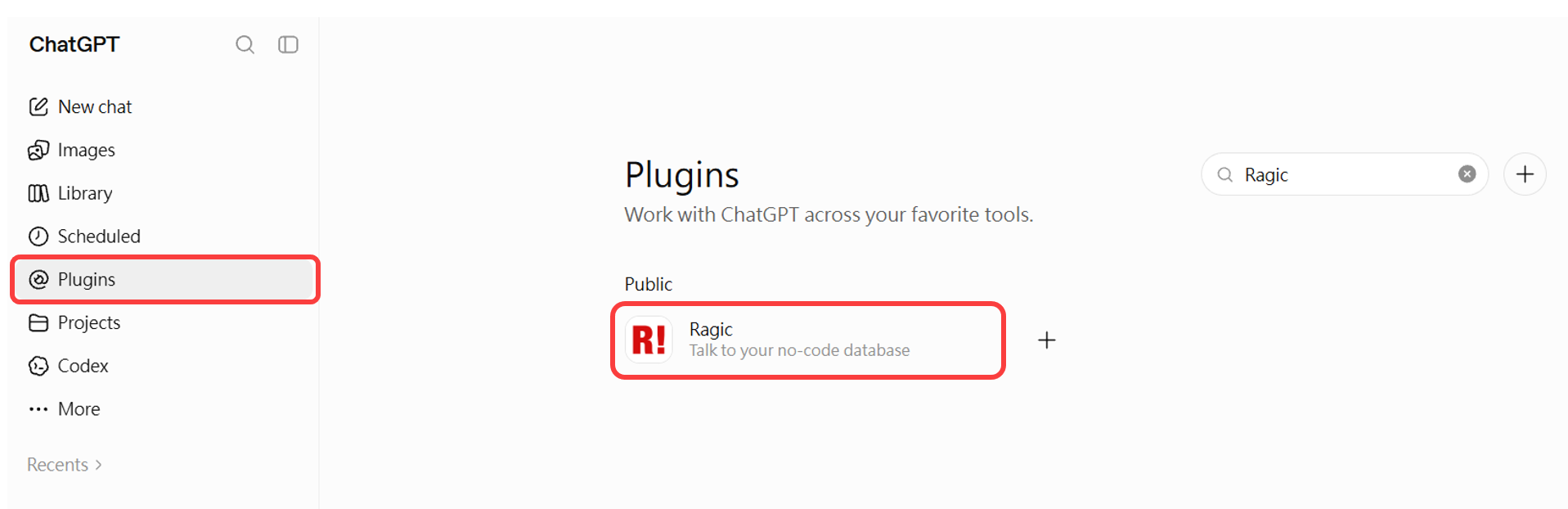
2. Click the + on the right to start connecting.
3. Follow the prompts to log in to Ragic and complete authorization. The connection is complete.
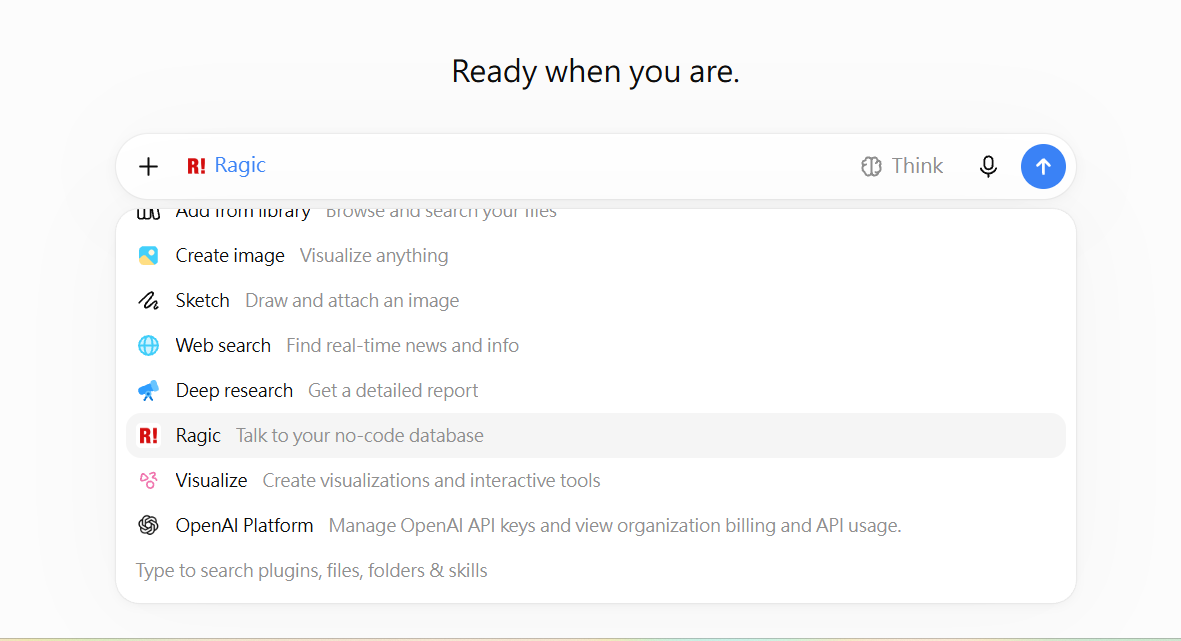
4. Select this Ragic plugin in a chat, and you can then ask ChatGPT to read your Ragic data.
2. On-premises Plan
If you're using an On-premises Plan, use Developer mode to add the plugin manually instead.
Note: On ChatGPT's Business Plan, a plugin can only be added by an admin, who then grants access to individual users. On a Personal Plan, you can connect directly using the steps below.
Steps:
1. Open ChatGPT settings.
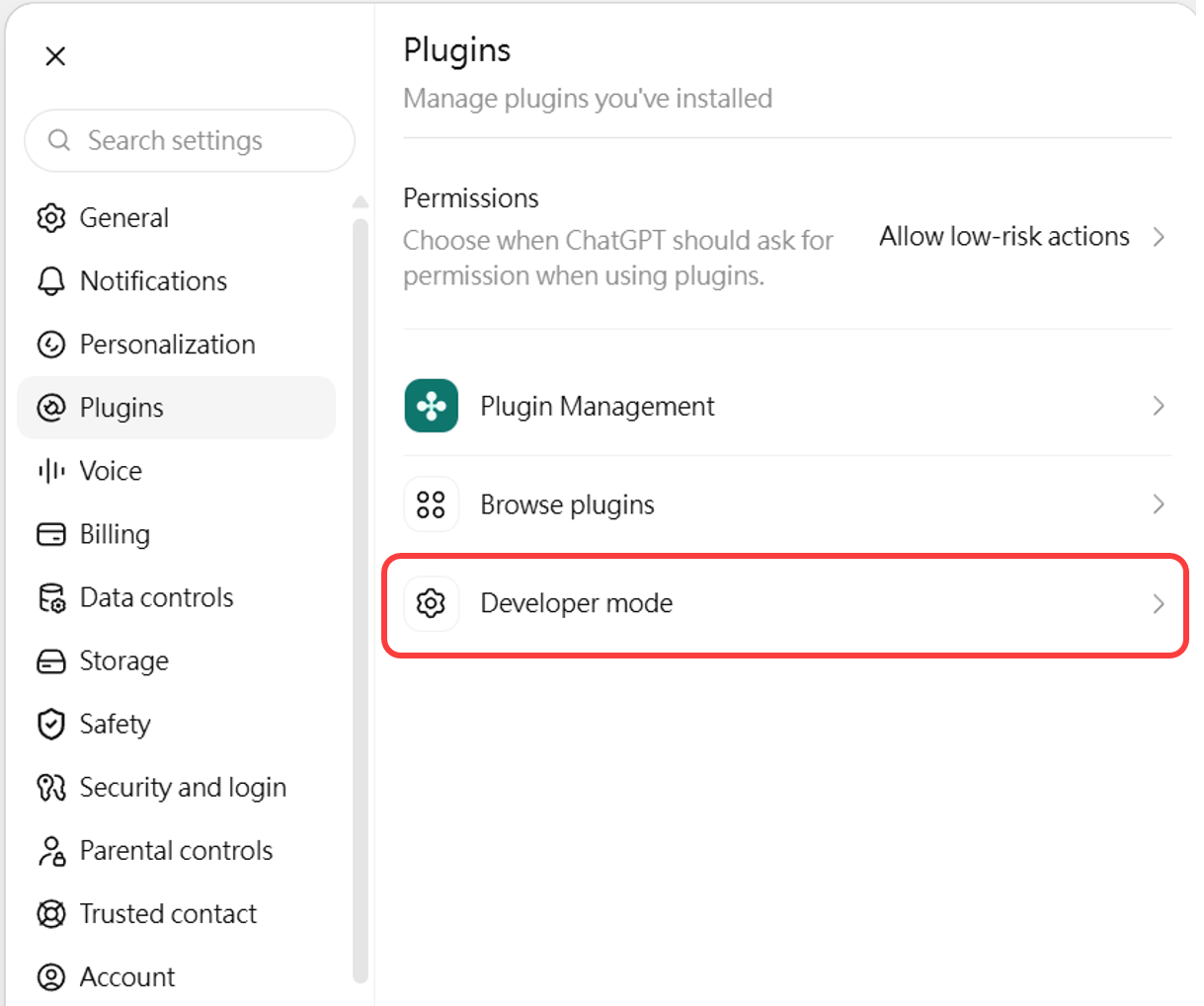
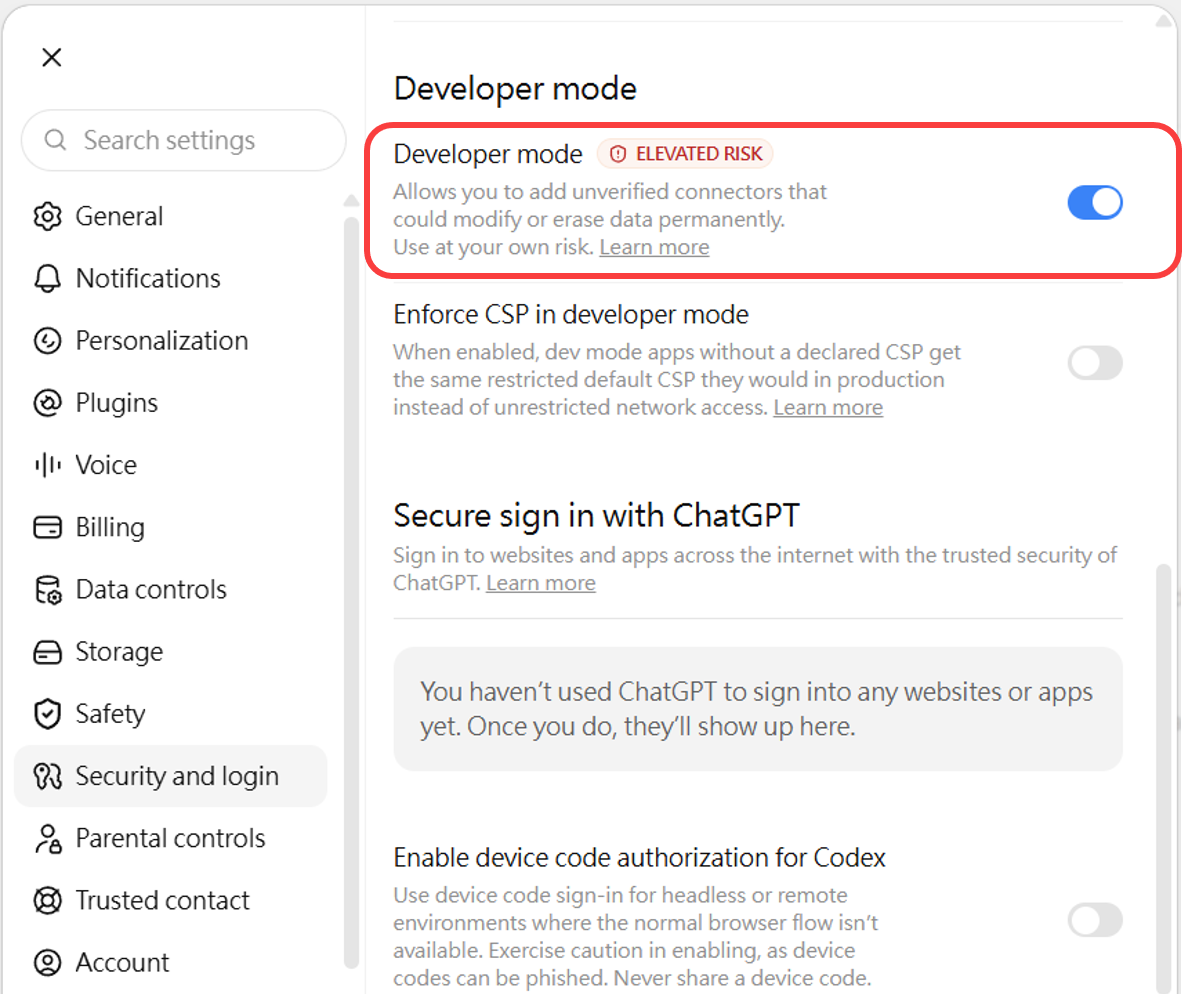
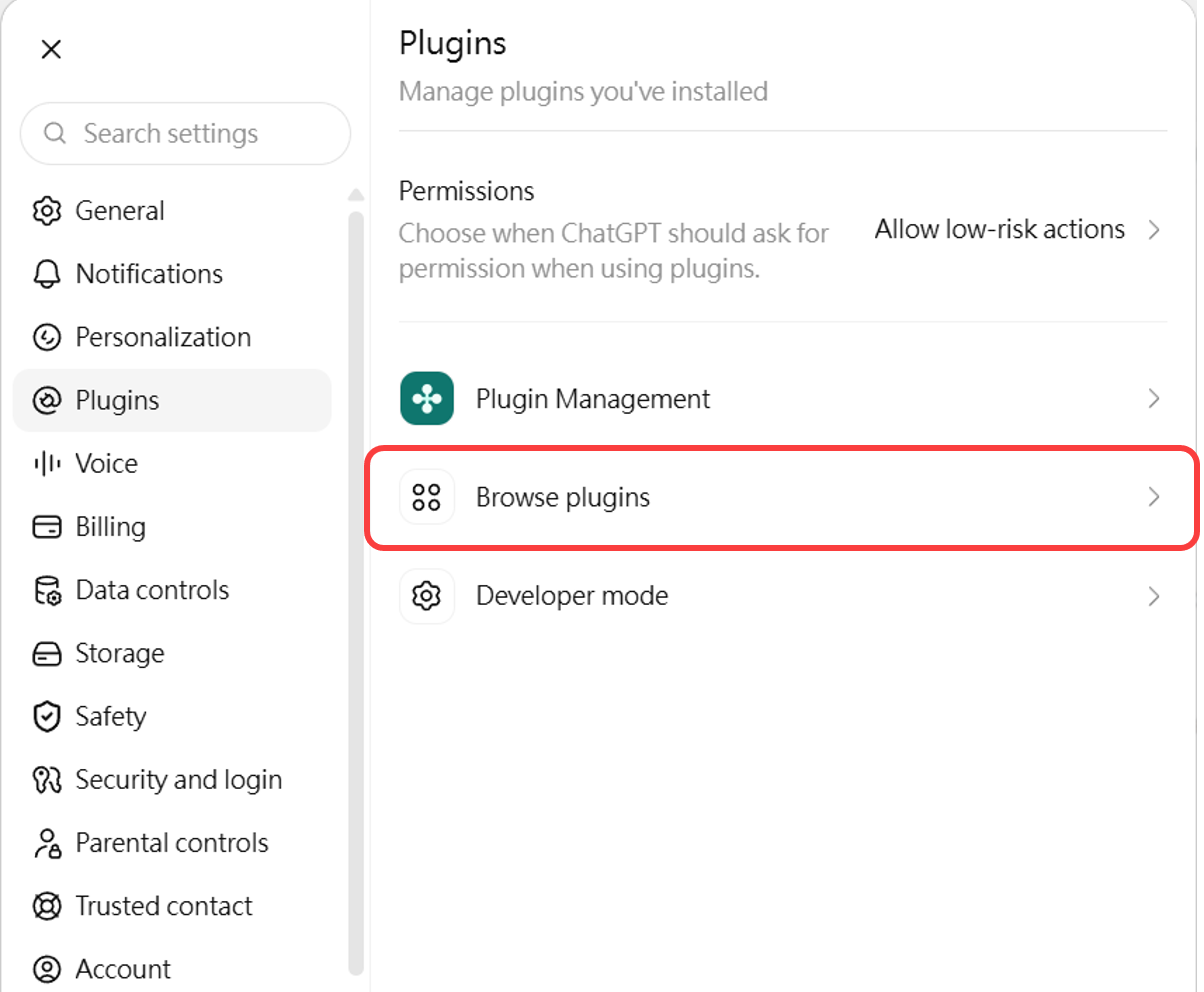
2. Go to Plugins settings, click Developer mode, then enable Developer mode inside.
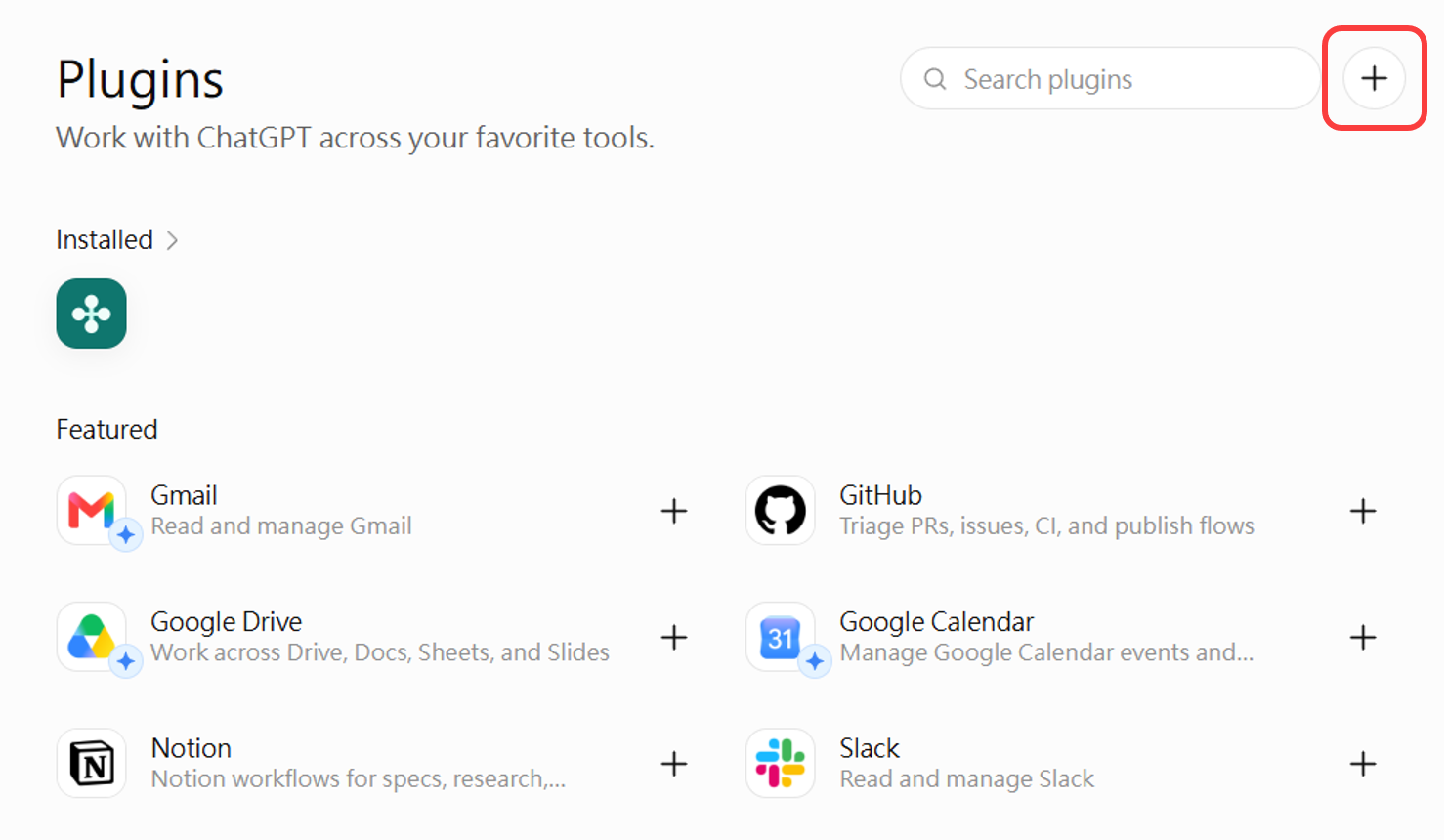
3. Go back to Plugins settings, click Browse plugins, then click the + in the top right to add a new plugin.
4. Enter "Ragic" as the name.
5. Enter the on-premises connection URL provided by your administrator (usually https://your-server-address/api/mcp).
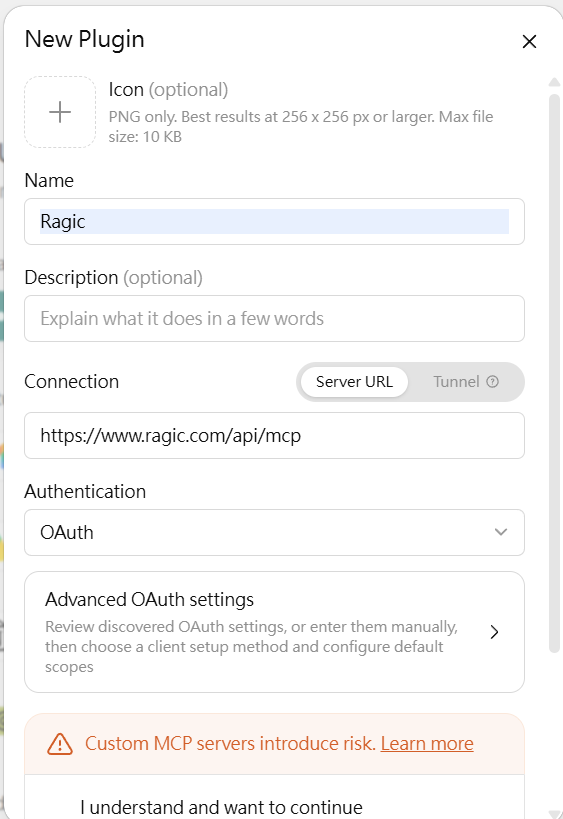
6. Choose OAuth as the authentication method.
7. After saving, follow the prompts to log in to Ragic and complete authorization.
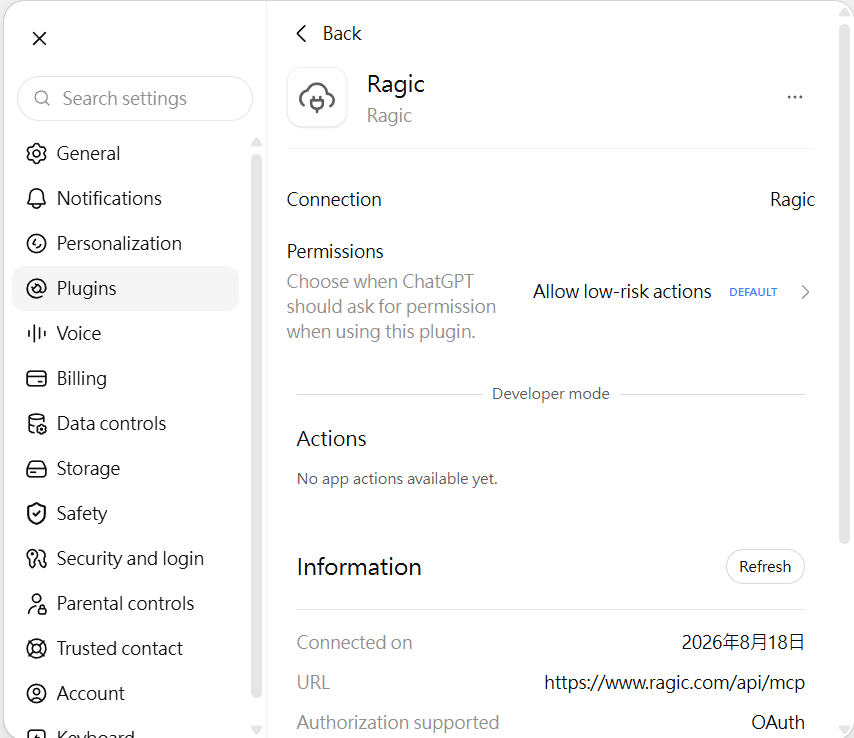
8. Select this Ragic plugin in a chat, and you can then ask ChatGPT to read your Ragic data.
Note: The entry point for Developer mode may change depending on OpenAI's interface. If you don't see the option for Developer mode or adding a plugin, check your account plan and organization settings.
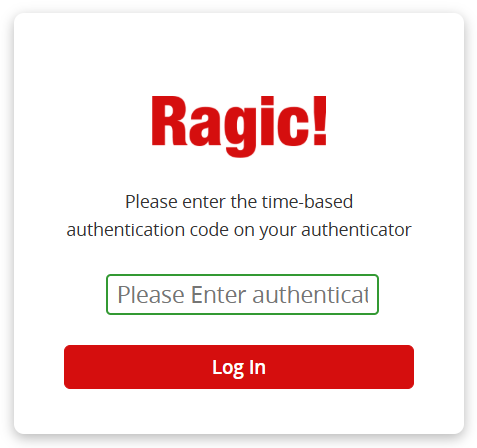
The OAuth login used when connecting via MCP follows the same two-step verification rules as logging in to the Ragic website: if your account has two-step verification enabled (e-mail verification code or authenticator app), the login page switches to a verification code prompt after you enter your password. With the e-mail method, the code is sent automatically and can be re-sent.
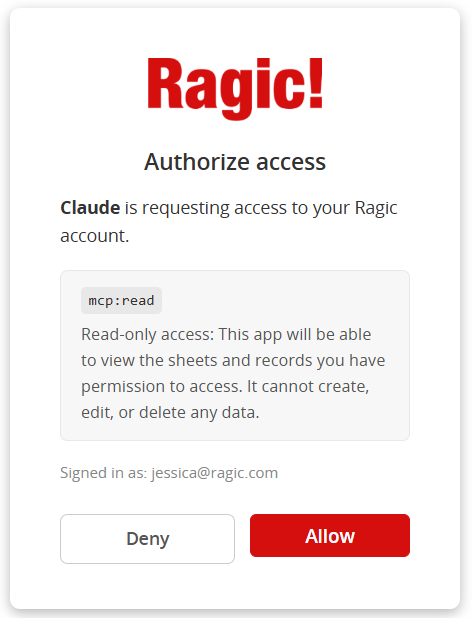
After verification, you'll be taken to the consent page; once you click Allow, the AI tool can start reading your data.
Note:
1. Entering the wrong code too many times temporarily locks the account, same as website login.
2. When signing in with a Google account, login completes through Google's own verification flow; Ragic does not ask for an additional code.
If you use developer tools like Claude Code or Codex, you can also connect to Ragic MCP. This section is for users comfortable with the command line or config files.
If you're using cloud service, you can add the remote MCP server directly from your terminal.
Claude Code:
claude mcp add --transport http --scope user ragic https://www.ragic.com/api/mcp
Once added, type the following in the Claude Code interactive window:
/mcp
Follow the prompts to complete Ragic login and authorization.
Codex: This writes to your user-level ~/.codex/config.toml:
codex mcp add ragic --url https://www.ragic.com/api/mcp
Then follow Codex's login flow to complete authorization.
If you're using an On-premises Plan without a trusted CA certificate, or your environment only supports MCP connections through local commands, you'll need to connect using mcp-remote instead — and you'll need to install Node.js, npm, and npx first.
If npm or npx isn't installed on your computer, download and install the LTS version from the Node.js official website first; npm will be installed along with Node.js. Once installed, reopen your terminal and run the following commands to verify:
node -v
npm -v
npx -v
Once all three commands show a version number, you can use the setup below. When you run npx -y mcp-remote, the system will automatically fetch mcp-remote the first time — no separate installation needed.
claude mcp add ragic --scope user -e NODE_TLS_REJECT_UNAUTHORIZED=0 -- npx -y mcp-remote https://localhost/api/mcp --allow-http
Replace https://localhost/api/mcp with your actual Ragic MCP connection URL.
Codex: You can switch to mcp-remote like this:
codex mcp add ragic --env NODE_TLS_REJECT_UNAUTHORIZED=0 -- npx -y mcp-remote https://localhost/api/mcp --allow-http
Replace https://localhost/api/mcp with your actual Ragic MCP connection URL.
Note: mcp-remote doesn't have a logout function. If you need to switch accounts or log in again, manually delete the local authentication data first, then restart Claude Code or Codex — you'll be redirected to the Ragic login flow.
Mac:
rm -rf ~/.mcp-auth
Windows:
1. PowerShell:
Remove-Item "$HOME\.mcp-auth" -Recurse -Force
2. cmd:
rmdir /s /q "%USERPROFILE%\.mcp-auth"
If you're on an On-premises Plan, check the following with your administrator first:
If you're using a web-based AI like claude.ai or chatgpt.com, the connection to your Ragic MCP URL is made by the cloud service, not directly by your browser. So you don't need to configure allowed browser origins separately. Cloud service requires no extra setup; the On-premises Plan just needs the URL to be reachable from outside services.
1. How do I log in the first time I connect?
The first time you connect, the AI service will walk you through the Ragic login flow. Log in with your own Ragic account; if your company supports Google login, you can use that too. Once you're logged in, the AI can read data according to your access rights.
2. Can the AI modify my data?
No. Ragic MCP currently only supports reading data. The AI can query data you have access to, but it can't create, edit, or delete anything. If other types of functionality become available in the future, we'll provide separate details on authorization and usage limits.
3. What if I can't find my data?
Check the following:
If you're not sure which sheet the data is in, try asking the AI to search by keyword first.
4. Why are some fields missing?
MCP reads data according to your access rights in Ragic. If you don't have access to a field in Ragic, the AI won't see it either.
5. What if a web-based AI can't connect to my on-premises server?
Contact your administrator to check the following:
 Thank you for your valuable feedback!